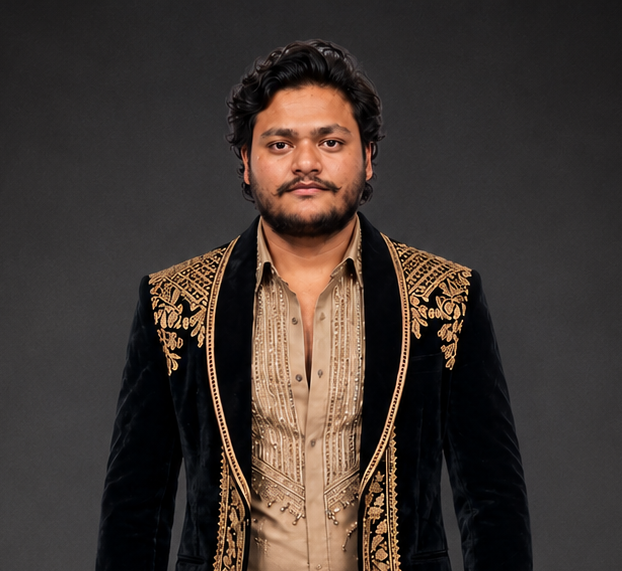
Create Realistic, Professional Passport-Style Photos with AI
Creating a professional passport-size photo no longer has to mean booking a photography studio or spending money on editing software. With ChatGPT and AI image-generation tools, you can create clean, realistic portraits with formal outfits, simple backgrounds, and balanced studio lighting in just a few steps. The secret is using the right passport size photo prompt for ChatGPT. A clear prompt helps the AI understand your preferred clothing, background color, facial expression, lighting, and photo composition.Create a cinematic professional portrait with natural lighting, realistic skin texture, sharp facial details, premium photography, soft background blur, high resolution, and realistic colors.
You can create a traditional white-background portrait, a modern corporate headshot, or a formal coat-suit photo for your professional profile.These prompts are useful for students, job seekers, office workers, freelancers, and anyone who needs a neat profile picture. You can also experiment with light blue or cream backgrounds and different formal outfits to find a style that suits you.In this guide, you’ll find 9 passport-size photo prompts that you can copy, paste, and customize for your own images.
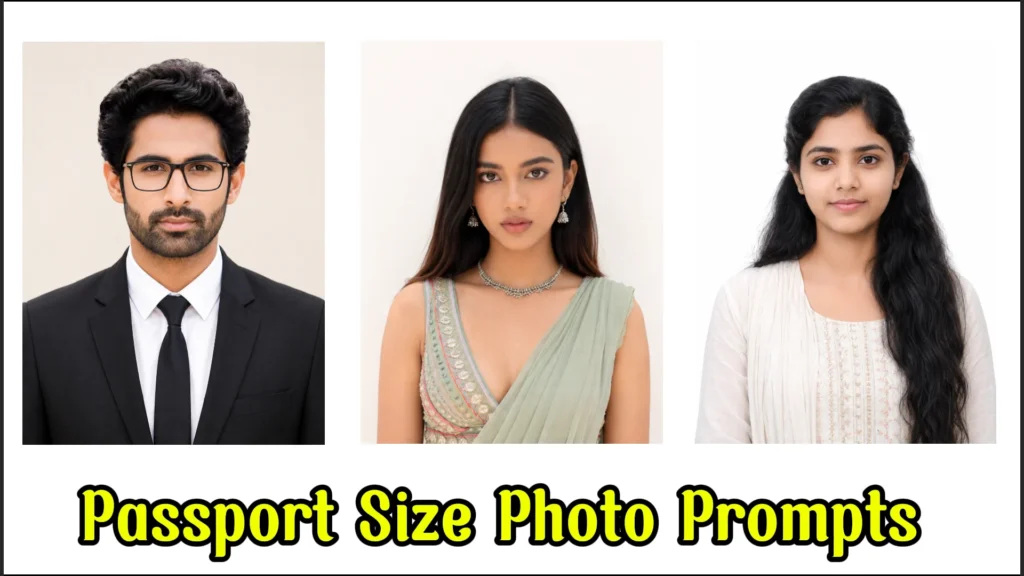
Why Are Passport Size Photo Prompts Becoming Popular?
AI photo editing has made professional-looking portraits more accessible. Instead of spending time adjusting backgrounds, fixing lighting, or changing clothes manually, you can describe the result you want and let an AI tool help create it.
Here are a few reasons people are trying these prompts:
- Create professional profile pictures without arranging a studio session.
- Generate clean portraits for resumes, job applications, and LinkedIn profiles.
- Experiment with formal suits, shirts, and different background colors.
- Improve the lighting and composition of an existing portrait.
- Prepare multiple passport-style photos for personal projects and printing.
- Create consistent headshots for office profiles and digital branding.
The best results usually come from a clear reference image and specific instructions. Asking the AI to preserve your original facial features, natural skin texture, and realistic proportions can help reduce unwanted changes.
Remember that an AI-generated portrait is not automatically suitable for an official passport or visa application. Always check the relevant government photo requirements before submitting it.
9 Best Passport Size Photo Prompts for ChatGPT
The following prompts cover different styles, from a classic formal portrait to a corporate headshot and a multi-photo layout. Upload a clear reference photo when needed, then copy the prompt that matches your requirements.
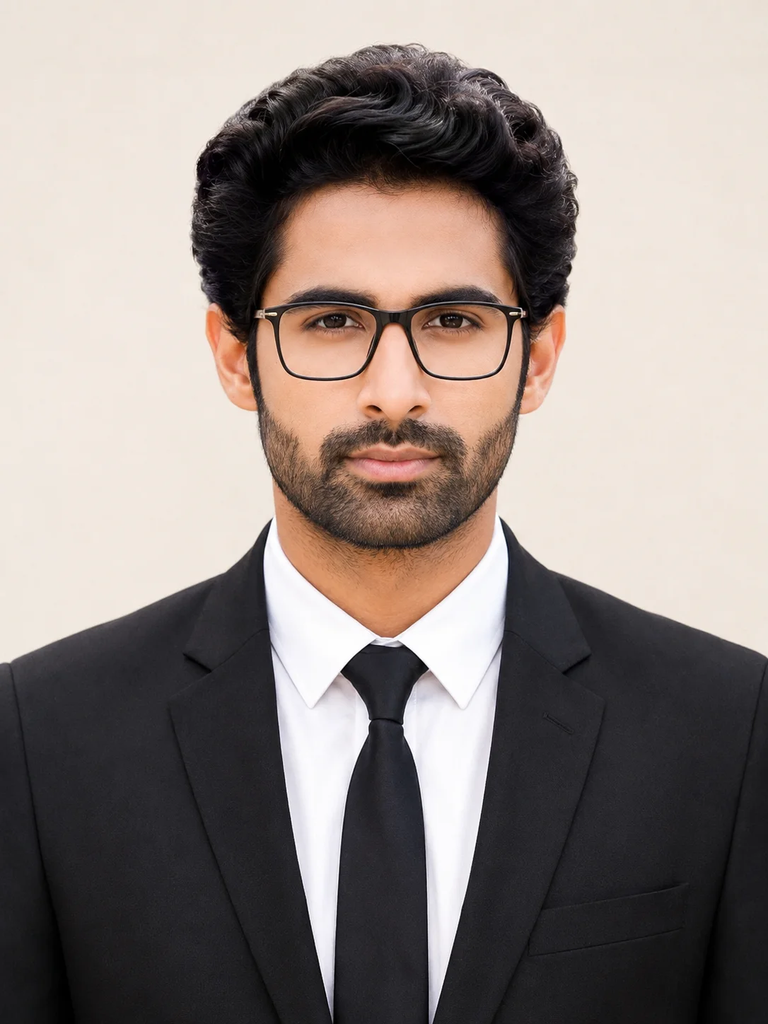
1. Studio-Quality Formal Portrait with a Modern Professional Look
This prompt is ideal if you want a polished portrait with a black suit, white shirt, and modern eyeglasses. Soft lighting and a light cream background give the image a professional studio appearance without making it look overly edited.
It’s a good starting point for resumes, business profiles, and professional branding.
2. Corporate Portrait with a Natural Indian Look
If you prefer a clean business-style portrait, this prompt focuses on realistic Indian skin tones, neat grooming, and traditional corporate clothing. The simple beige background keeps attention on the face, while the soft lighting creates a balanced and confident appearance.
Use it for a professional profile, a resume photo, or a business account.
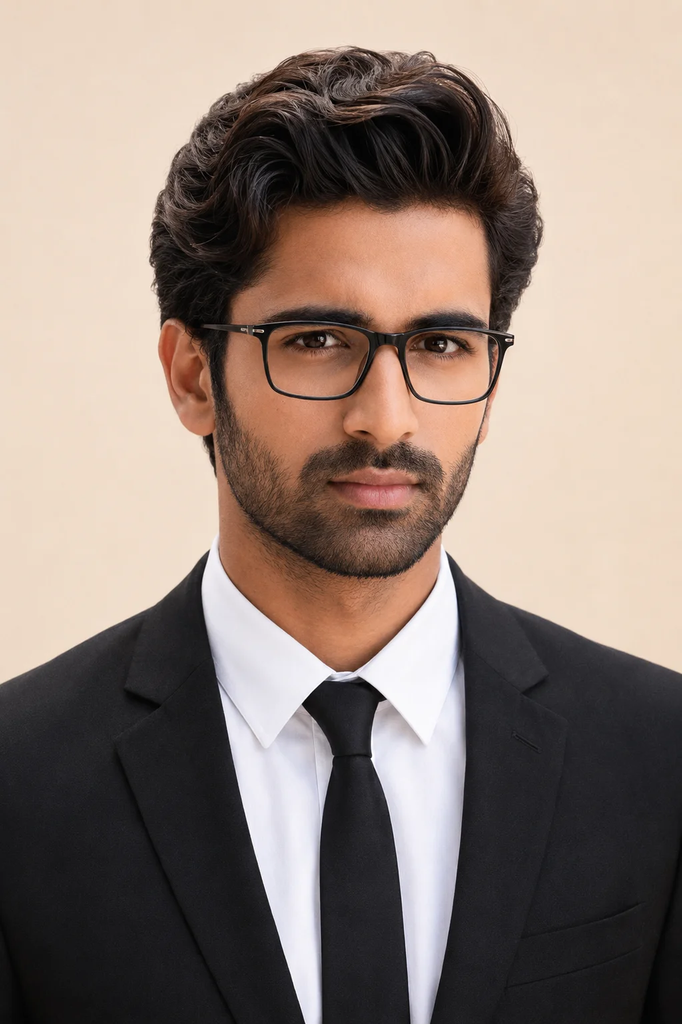
Create a realistic corporate studio portrait of a young Indian man wearing a black business suit, white shirt, and black tie. Keep his hairstyle neat, beard naturally trimmed, and facial features realistic. If a reference photo is provided, preserve the person’s identity, original face shape, skin tone, and distinctive features. Add modern eyeglasses only if they suit the reference image. The person should look directly into the camera with a calm expression and a slight natural smile. Use soft studio lighting, a clean beige background, sharp focus, realistic skin texture, and high-resolution DSLR-style quality. Maintain centered head-and-shoulders framing with minimal shadows and no artificial beauty filters.
3. Clean White Background Portrait for Official-Style Photos
A plain white background is a popular choice for passport-style pictures because it creates a simple, uncluttered appearance. This prompt focuses on proper framing, natural facial details, and even lighting.
Choose it when you want a straightforward portrait for personal documents, application forms, or a professional profile. Check official photo specifications separately if the image is intended for a government application.
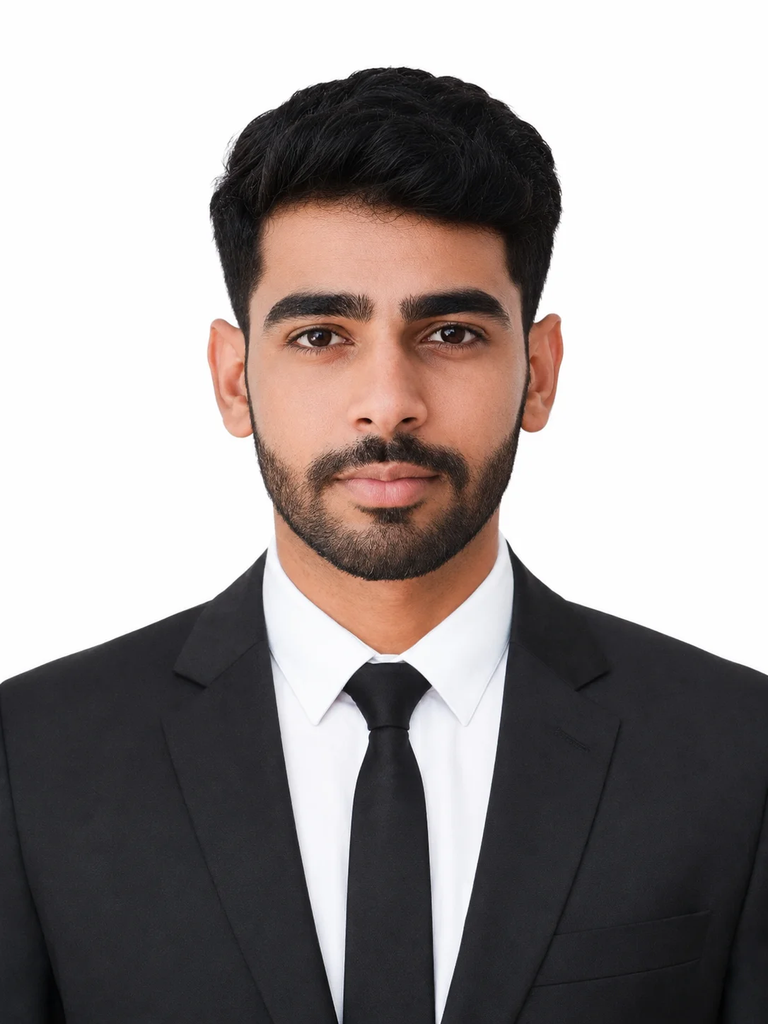
Create a realistic passport-style photograph using my uploaded image as the reference. Preserve my original facial identity, natural skin tone, and facial proportions. Use a completely plain white background with no patterns, objects, or distracting details. Keep my full head and shoulders visible, with the face centered and looking straight at the camera. Use a neutral expression, natural skin texture, soft and even front lighting, and clear focus. Dress me in simple formal clothing appropriate for a professional portrait. Maintain realistic proportions and balanced exposure without excessive retouching, harsh shadows, or artificial effects. Produce a clean, high-resolution image with a traditional passport-photo appearance.
4. Professional ID-Style Portrait with Balanced Lighting
Good lighting can make a significant difference in a passport-style photograph. This prompt emphasizes a centered face, natural skin tones, and a plain background for a clean, professional result.
It’s suitable for office ID concepts, digital profiles, and other situations where a simple headshot is preferred.
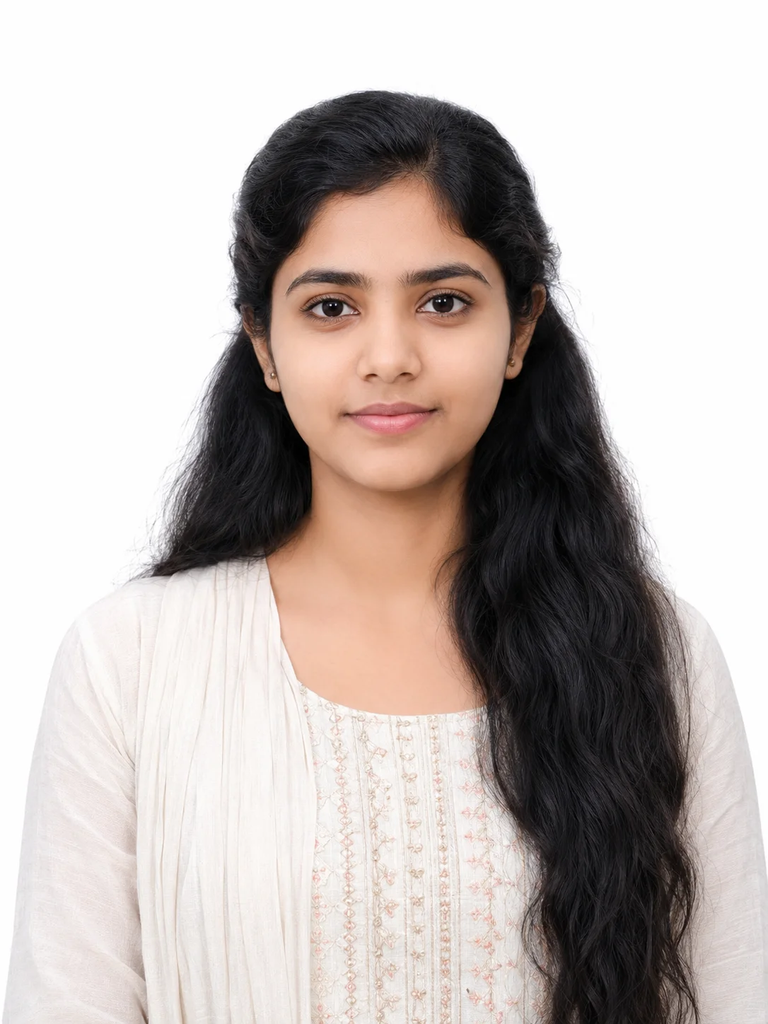
Generate a professional ID-style portrait from my reference photo while keeping my real facial features and identity unchanged. Use a plain white background, a centered head position, and a straight, front-facing pose. Include the full head and shoulders within the frame. Maintain a neutral expression, natural skin tone, and realistic facial details. Dress me in neat formal clothing suitable for an office or professional setting. Use balanced studio lighting with soft shadows, accurate exposure, and sharp focus. Keep the image simple, clean, and natural, with no exaggerated facial edits, unnecessary accessories, background objects, or artificial filters. Aim for a polished passport-style composition.
5. Elegant Formal Portrait for Women with Natural Styling
Women can use this prompt to create a professional portrait with understated styling and natural-looking makeup. The focus is on realistic skin texture, simple formal clothing, and a clean background rather than heavy beauty edits.
It’s a useful option for resumes, professional profiles, and formal headshots.
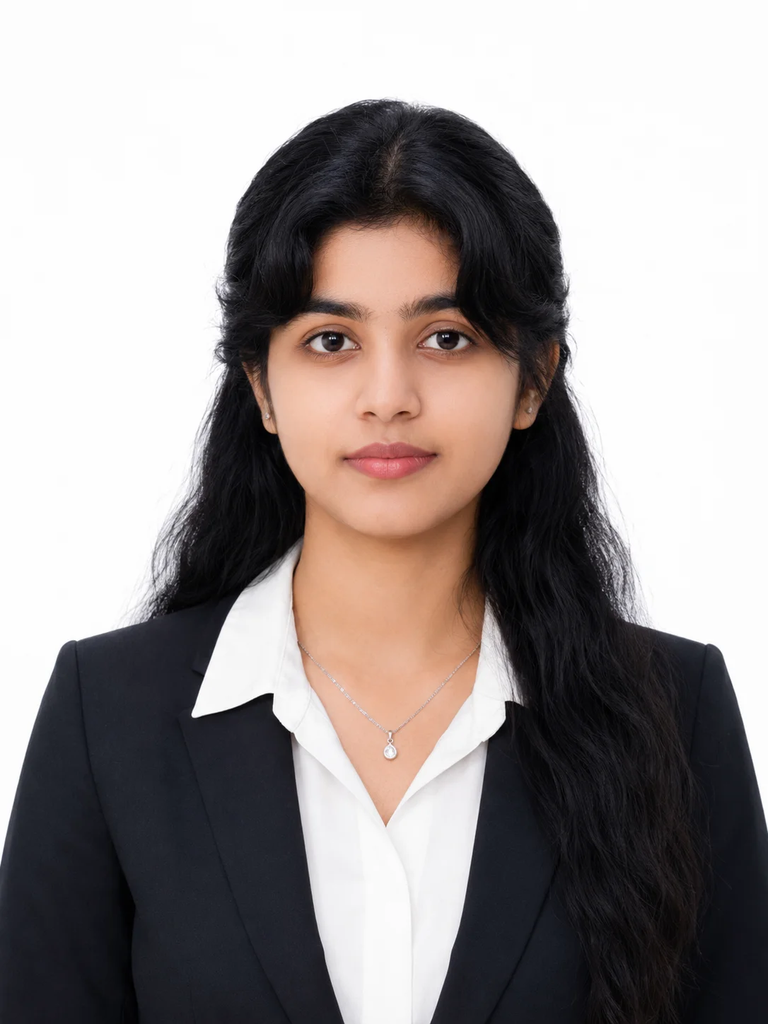
Create a realistic passport-style portrait of a woman using the uploaded reference image. Preserve her original facial identity, face shape, skin tone, and natural features. Use minimal, natural-looking makeup and neat formal clothing suitable for a professional photograph. Keep the face centered, the head and shoulders fully visible, and the expression neutral with a relaxed appearance. Use a plain white background, soft and even studio lighting, realistic skin texture, and clear focus. Maintain natural proportions and a polished but authentic look. Avoid excessive skin smoothing, dramatic makeup, artificial facial changes, strong shadows, and decorative background elements.
6. High-End Business Portrait with Realistic Facial Details
This prompt is designed for people who want a premium corporate headshot while keeping their natural appearance. It combines formal business clothing, realistic lighting, and high-resolution details for a refined result.
You can use it for professional branding, LinkedIn, resumes, and office profiles.
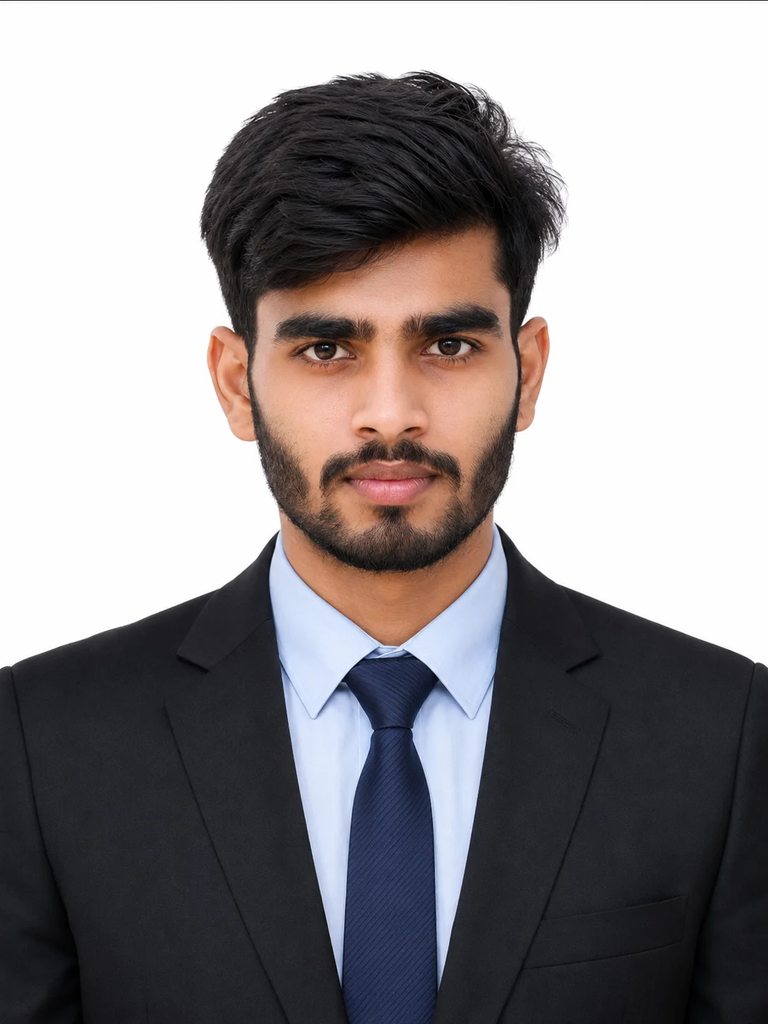
Generate an ultra-realistic professional passport-size portrait of the person in the uploaded reference image. Preserve the original facial structure, identity, skin tone, and distinctive features as accurately as possible. Dress the person in a well-fitted business blazer, formal shirt, and tie. Use a straight, front-facing pose with a neutral expression and centered composition. Keep the entire head and shoulders visible. Add a plain white or light neutral background, soft studio lighting, realistic shadows, and natural skin texture. Aim for a sharp, high-resolution corporate headshot with a DSLR-quality appearance. Avoid excessive retouching, artificial skin, altered facial proportions, and distracting details. Keep the final image professional and suitable for resumes, LinkedIn profiles, and business identification.
7. Natural Daylight Portrait with a Soft, Realistic Appearance
Not everyone wants a heavily styled studio portrait. This prompt creates a softer look with natural lighting, gentle shadows, and a relaxed expression.
Choose it if you prefer a fresh, realistic appearance rather than a sharply edited corporate photograph.
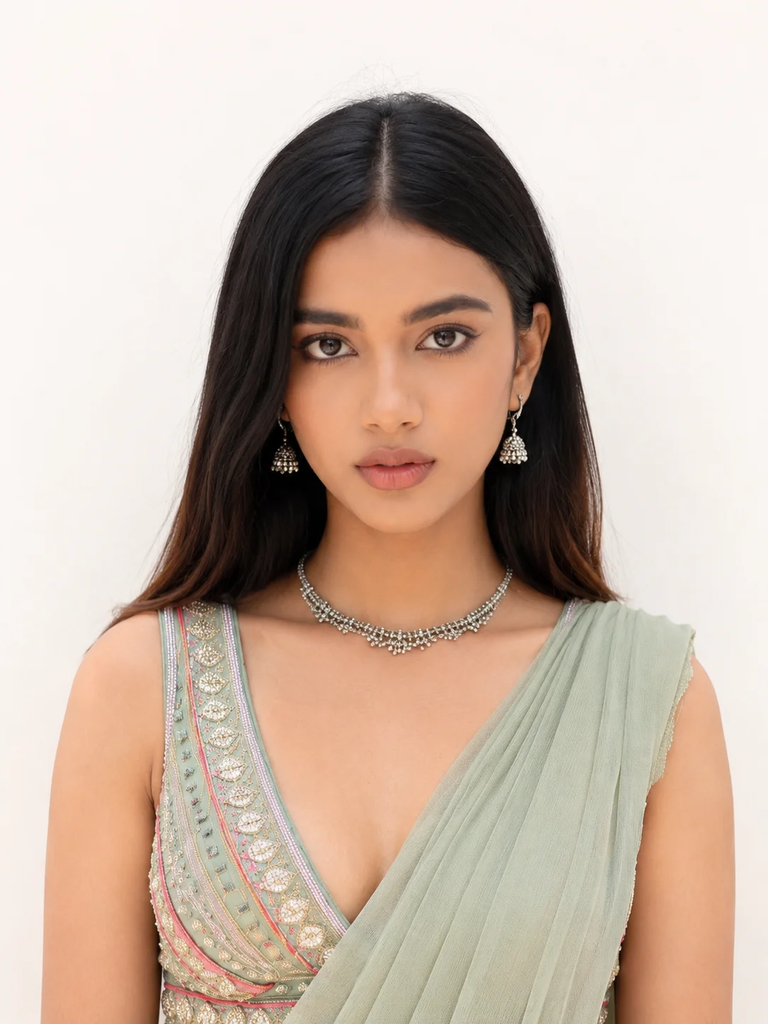
Create a natural-looking passport-style portrait of the person in my uploaded photo. Keep the original face, facial proportions, identity, and skin tone unchanged. Use soft daylight-style illumination with gentle shadows and balanced exposure. Set the background to plain white or light beige, without objects or patterns. Keep the face centered, the head and shoulders visible, and the expression relaxed and neutral. Preserve natural skin texture and realistic details instead of applying beauty filters or excessive smoothing. Maintain a clean, sharp, professional composition that looks like a genuine photograph taken in good lighting.
8. Formal Three-Piece Suit Portrait with a Multi-Photo Layout
If you like a more traditional formal look, this prompt combines a three-piece suit with a clean background and consistent framing. It also asks for six matching copies on one sheet, which can be useful for a printing layout.
Check the final dimensions and spacing before printing, as AI-generated sheets may not follow exact physical measurements.
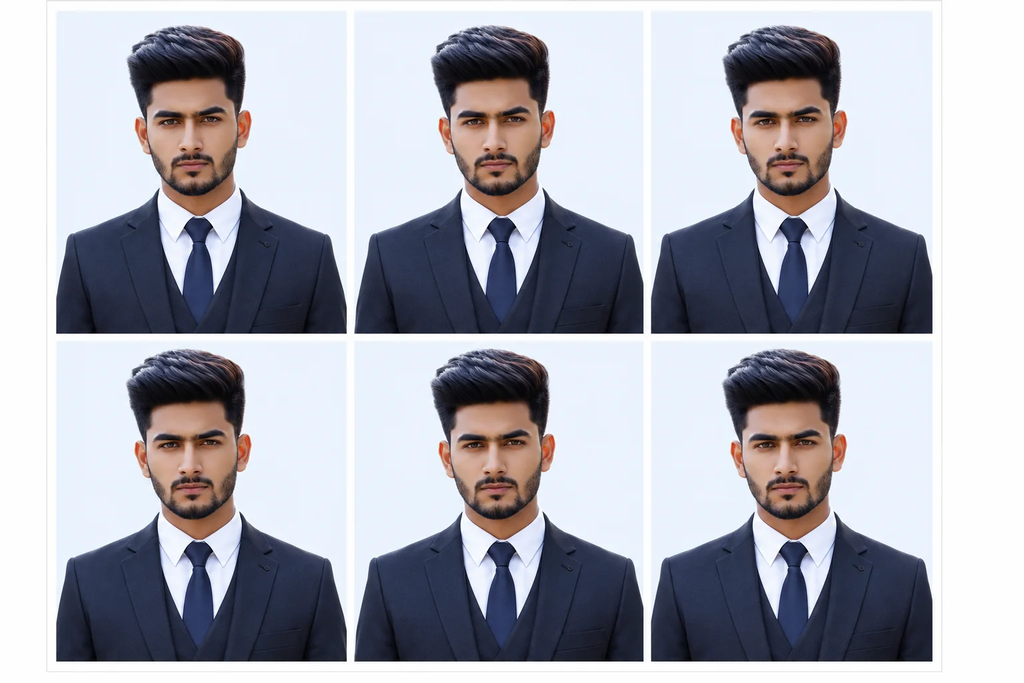
Create an ultra-realistic passport-style photograph of the man in my uploaded reference image. Preserve his real facial identity, facial structure, and natural skin tone. Dress him in an elegant three-piece formal suit with a matching tie and a clean, professional appearance. Use a neutral closed-mouth expression, a straight front-facing pose, and framing that shows both ears and the shoulders. Keep the background plain white or light blue, with even studio lighting and minimal shadows. Arrange six identical copies of the same portrait on one clean sheet, keeping each copy consistent in appearance and proportions. Use high-resolution output and clear spacing between the photographs. Do not change the face between copies or add unnecessary decorative elements. Verify the physical dimensions and print layout separately before use.
9. Professional Portrait with a Light Blue Background
A light blue background offers a slightly different look while keeping the portrait formal and uncluttered. This prompt is useful for people who prefer a cool-toned backdrop and want multiple matching copies on one sheet.
It works well for personal profile pictures and printing concepts, provided the background and dimensions meet the intended requirements.
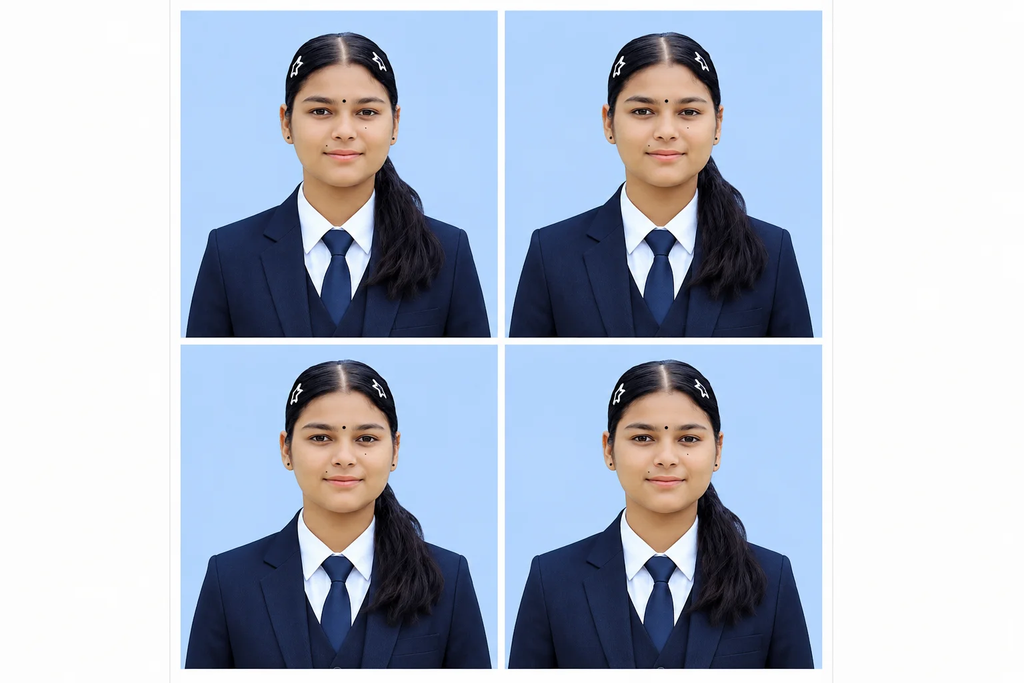
Create an ultra-realistic passport-style portrait using my uploaded reference photo. Preserve my original face, identity, skin tone, and facial proportions. Dress me in a neat three-piece suit with a formal shirt and matching tie. Use a neutral closed-mouth expression and a direct, front-facing pose, with both ears and shoulders visible. Set the background to a plain, soft light blue color. Apply even studio lighting, natural skin texture, sharp focus, and realistic facial details. Arrange four identical copies of the portrait on one sheet, keeping the face, outfit, lighting, and proportions consistent across all copies. Use a clean, high-resolution layout with sufficient spacing. Do not distort the face or add decorative effects. Confirm the required print dimensions separately.
How to Create a Passport Size Photo Using ChatGPT
You don’t need advanced photo-editing skills to get started. Follow these simple steps to generate your portrait.
Step 1: Choose a Clear Reference Photo
Select a well-lit photograph in which your face is clearly visible. A front-facing image with minimal obstruction generally makes it easier for the AI to preserve your facial features.
Step 2: Open ChatGPT
Open ChatGPT and use an image-generation feature available in your account. Upload your reference photo if the feature supports image uploads and editing.
Step 3: Copy Your Preferred Prompt
Choose one of the nine prompts above. Pick a white background for a classic look, a cream background for a warmer portrait, or a light blue background if you prefer that style.
Step 4: Generate the Image
Submit the prompt and review the generated result. Check your facial identity, clothing, background, lighting, and head position.
Step 5: Refine the Result
If the image changes your face too much, ask ChatGPT to preserve your original facial features more closely. You can also request more natural skin texture, softer lighting, or better-centered framing.
Step 6: Check the Final Size
Before printing or submitting the photo, verify the required dimensions, aspect ratio, background, and file format. AI tools may produce an attractive portrait without meeting the exact specifications of an official application.
Tips for Getting Better Passport-Style AI Photos
A detailed prompt is helpful, but a few practical adjustments can make the final image more consistent.
Use a High-Quality Reference Image
Start with a clear photograph that shows your face from the front. Blurry images, strong shadows, and unusual camera angles can make it harder for an AI tool to reproduce your appearance accurately.
Keep Facial Features Natural
Include instructions such as “preserve my original identity,” “keep my natural skin texture,” and “do not change my face shape.” These directions can help, although they cannot guarantee a perfect match.
Choose a Simple Background
White, light cream, and light blue backgrounds are popular for clean portraits. The correct choice depends on whether you’re creating a personal headshot or preparing a photo for a specific official requirement.
Avoid Excessive Editing
Overly smooth skin, altered eyes, artificial facial proportions, and unrealistic lighting can make a photograph look less authentic. Ask for natural details instead of heavy beauty effects.
Review Every Detail Before Printing
Check the head position, shoulders, background, clothing, image clarity, and physical dimensions. If you request multiple copies on one sheet, make sure the copies are consistent and the spacing is suitable for printing.
Are AI-Generated Passport Photos Accepted for Official Documents?
AI-generated passport-style portraits can be useful for resumes, personal profiles, and professional branding. However, an image that looks like a passport photo does not necessarily meet the rules for an actual passport, visa, or government ID.
Official applications may require an unaltered photograph that accurately represents the applicant. Requirements vary by country and document type, and AI-generated or digitally altered photos may be rejected.
Before using an AI-created image for an official purpose, check the current instructions from the relevant government authority. When a genuine, unaltered photograph is required, use a compliant photograph rather than an AI-generated substitute.
Frequently Asked Questions
1. How do I create a passport-size photo using ChatGPT?
Upload a clear reference photograph to a ChatGPT image-generation feature, then enter a detailed prompt describing the background, clothing, lighting, expression, and framing. Review the result and make adjustments until it looks natural. Check the required dimensions separately before printing.
2. Which prompt is best for a professional passport-style photo?
The studio-quality formal portrait prompt is a good starting point for a clean, professional appearance. It emphasizes natural facial details, formal clothing, centered framing, and soft lighting. You can adjust the background and outfit to match your preferences.
3. Can I create a passport-style photo with a white background?
Yes. Use a prompt that specifically requests a plain white background, a centered face, full head-and-shoulders framing, natural skin tones, and balanced lighting. If the photo is for an official application, verify that the background and other details meet the relevant requirements.
4. Can ChatGPT create a passport-style photo with a suit?
Yes. You can request a black suit, a formal shirt, a tie, or a three-piece suit. Upload a suitable reference photo and ask the image-generation tool to preserve your original facial identity while changing the clothing.
5. Why does AI change my face when generating a passport photo?
AI image generation may reinterpret facial details instead of reproducing them exactly. A low-quality reference image or a vague prompt can make this more likely. Use a clear, front-facing photo and explicitly request that the original facial structure, skin tone, and distinctive features remain unchanged.
6. Can I create multiple passport-size photos on one sheet?
Yes. Some image-generation tools can attempt to arrange several matching portraits on one sheet. However, the output may contain inconsistent faces, spacing, or incorrect physical dimensions. Review the layout and verify the measurements using an image editor or printing tool before printing.
7. What background color should I choose for my passport-style photo?
White is a common choice for a clean, traditional portrait. Light cream creates a warmer appearance, while light blue offers a slightly different professional style. For official documents, always follow the specific background requirements of the issuing authority.
8. Are these ChatGPT photo prompts suitable for LinkedIn and resumes?
Yes. These prompts can help create professional-looking portraits for LinkedIn, resumes, online portfolios, business profiles, and office directories. Choose a simple background, appropriate clothing, realistic lighting, and an expression that suits your professional image.
9. Do I need professional photo-editing software to use these prompts?
Not necessarily. You can start with a supported ChatGPT image-generation feature and a clear reference image. Additional editing software may be useful if you need exact print dimensions, precise cropping, consistent spacing, or a specific file format.
Final Thoughts
Creating a professional passport-style portrait with ChatGPT can be a simple way to experiment with formal photos without arranging a studio session. The right passport size photo prompt helps you describe the look you want, whether that means a classic white background, a modern corporate headshot, a formal suit, or a natural daylight portrait.
Start with a clear reference image and one of the nine prompts in this guide. Pay attention to facial accuracy, natural skin texture, lighting, and framing instead of relying only on high-resolution output. Small changes to the wording can make a noticeable difference in the final image.
Most importantly, remember that a professional-looking AI portrait and an officially compliant passport photograph are not always the same thing. Use AI-generated images for suitable personal and professional purposes, and check the relevant photo rules before submitting an image for a passport, visa, or government ID.
SEO Details
SEO Title: 9 Best Passport Size Photo Prompts for ChatGPT (2026)
Slug: passport-size-photo-prompts-for-chatgpt
Meta Description: Try 9 passport size photo prompts for ChatGPT to create realistic portraits with formal suits, clean backgrounds, natural lighting, and professional styles.
Focus Keyphrase: passport size photo prompt for ChatGPT
Category: AI Photo Prompts